
I want to see the photos i sent and they sent.
A Reddit user asked this while trying to reopen a DM with a deleted account. They already had their Discord data package, but still could not reach the photos.
Friendcord can help you find that conversation and reopen it with Friendcord Instant. Once the actual DM is open in Discord, search its remaining images—including photos the other person sent. Your exported messages help identify the chat; the reopened conversation is where you look for both sides of its remaining history.
Reopen the conversation with Friendcord Instant
If you already know the other person's correct original User ID, use Friendcord's direct Instant opening option. You do not need to request an export first.
1. Install the Friendcord mobile app and the Friendcord Instant browser extension using the links on the Friendcord website.
2. Open the extension and pair it with the mobile app using the QR flow.
3. Keep Discord signed in to the account that participated in the conversation in that browser.
4. In Friendcord, select the identified conversation or use the known User ID, then open its Open DM options.
5. Choose the Instant Open DM action. The paired extension opens the conversation in Discord.
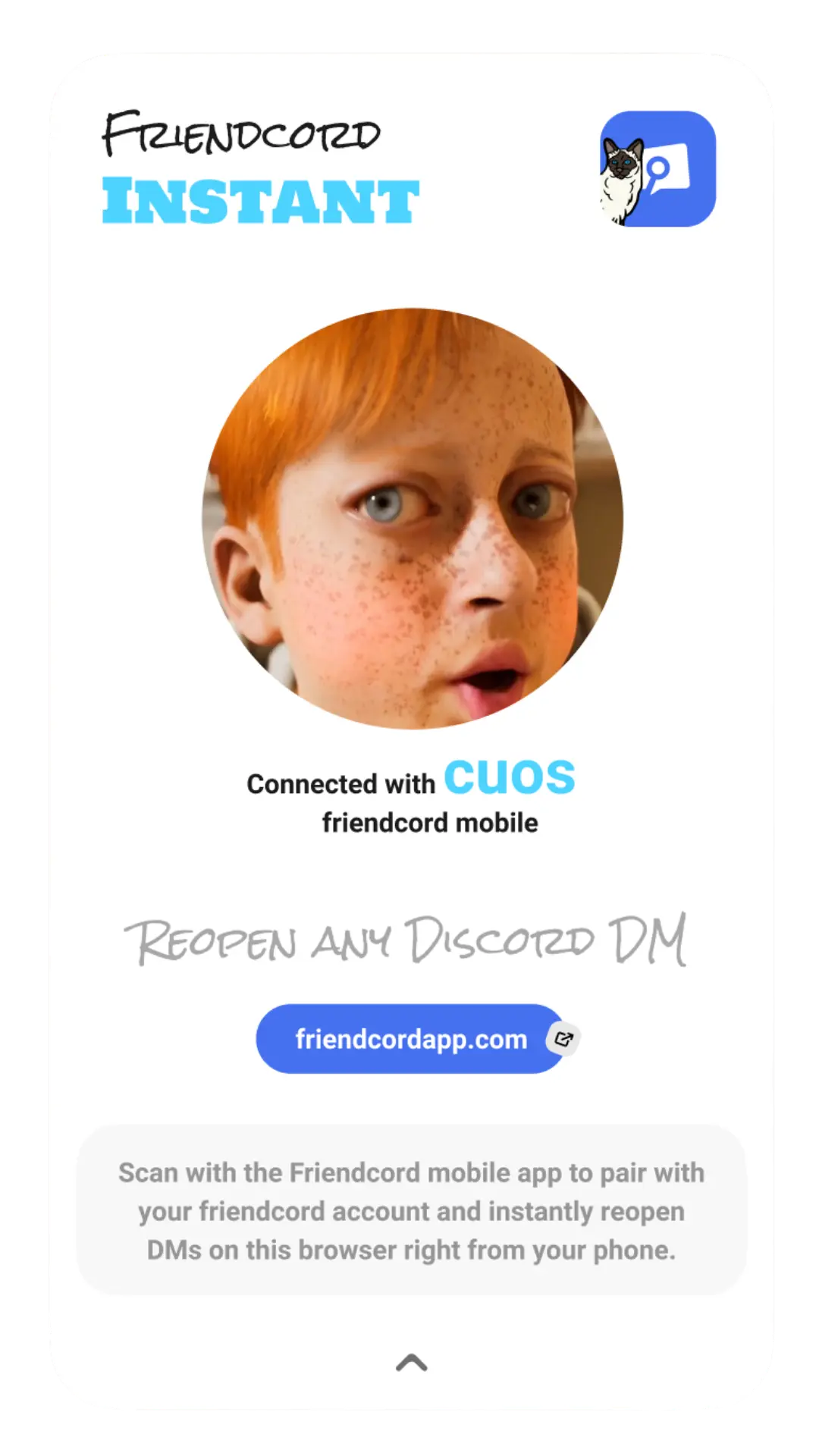
Product example: the extension shows when your phone is paired with the browser. It does not depict the quoted user's account.
Friendcord's owner confirms that Instant can reopen your existing DM with someone who deleted their account or blocked you. Reopening lets you inspect the remaining history; it does not reactivate the account or enable sending through a block. This guide uses the documented product flow and owner-confirmed capability, rather than claiming an independent test on the Reddit user's conversation.
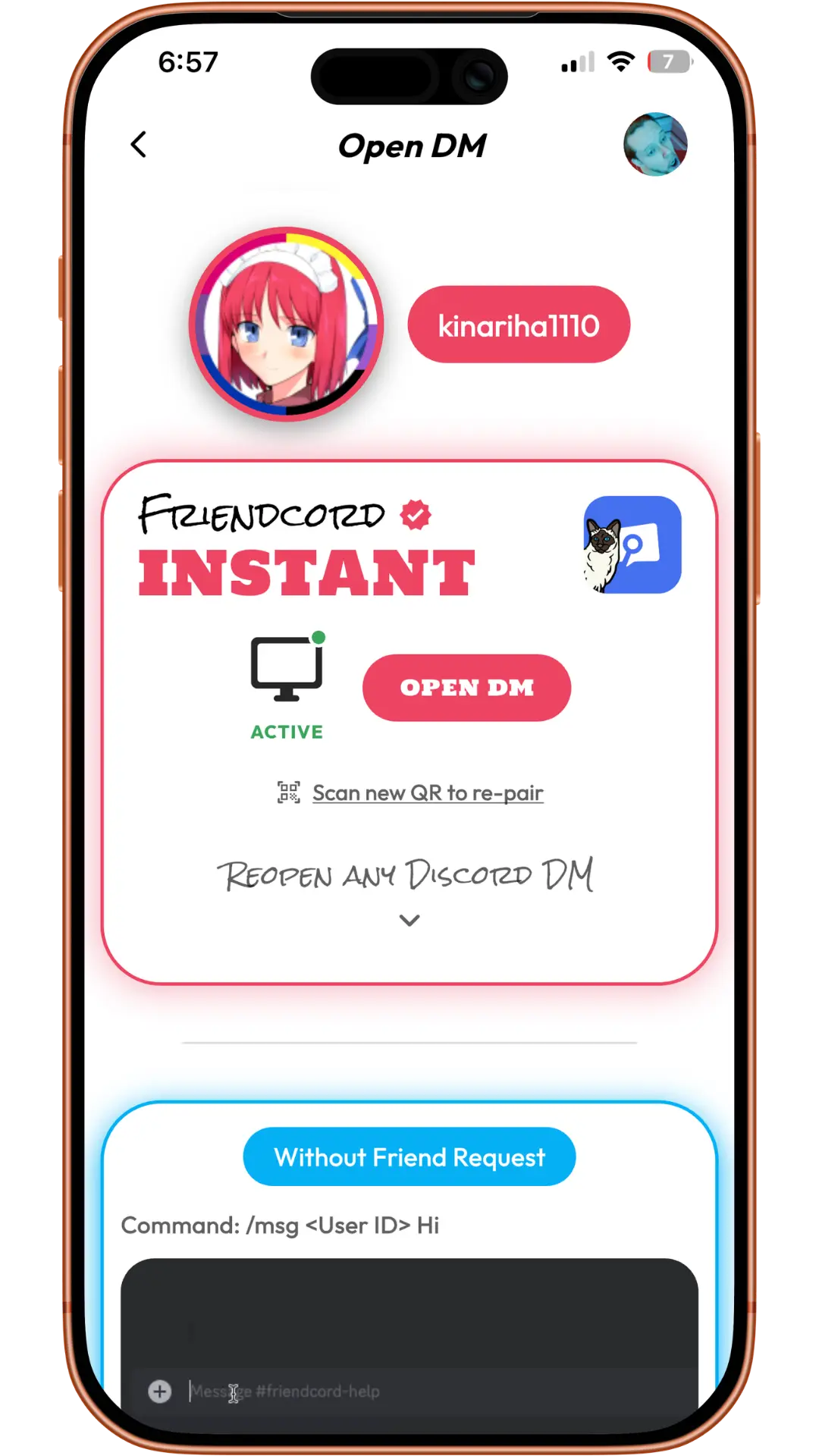
Product example: use the Instant Open DM button once the paired connection is active.
If you do not know the User ID, find the chat first
Use the Discord account you originally chatted from. Request its message data under Settings → Data & Privacy → Request your data, then download the ZIP from Discord's email. Discord says preparation can take up to 30 days; see its data-package instructions.
Import that ZIP into Friendcord. Search a distinctive word you sent around the photo: a game, trip, nickname, or a comment about what was pictured. Narrow the results by the approximate date, inspect recognizable messages, and open the matching conversation's DM options. Choose Instant to move from the archive into the actual Discord chat.
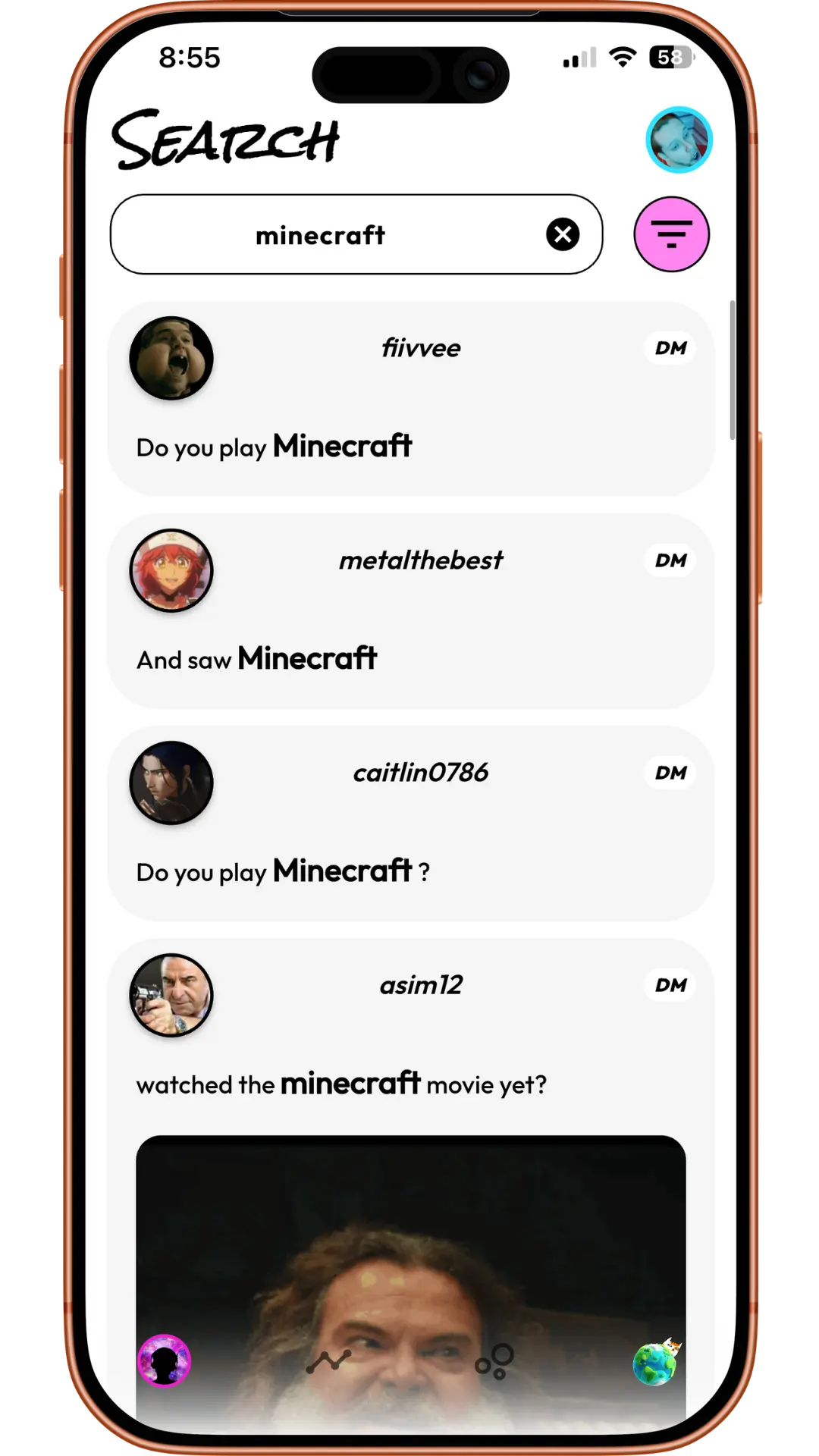
Product example: a remembered topic can identify the conversation even when its old username is no longer useful.
A Discord export contains your sent messages. It is not a complete archive of every photo and reply the other person sent. That limitation does not restrict the history visible after Instant reopens the actual conversation. For more help locating the chat inside the ZIP, see our Discord data-package guide.
Find the photos without scrolling through every message
it takes ages scrolling through the chat to find one specific picture
That is a short excerpt from a May 2019 Discord community request about shared media. Once your DM is open, Discord's content and date filters are the next step.
1. Open search inside that DM. On desktop or browser, use the upper-right search bar, or Ctrl+F on Windows and Cmd+F on Mac.
2. Choose the image content filter, or type has:image and select the matching filter option.
3. Add a date range if you remember roughly when you exchanged the photo. Start broad, then narrow it.
4. Search both senders initially. A deleted profile can make the sender selector confusing; the conversation and image filter are better starting points.
5. Select a matching result to jump to its message. Open the image and save a copy if it still loads.
On mobile, open the DM's details and use the available Media view, or search with the content and date filters. Discord's mobile layout guide describes browsing images and videos through the Media filter. Its current search guide explains content filters, date controls, and jumping to results.
If the image still does not appear
Show all images sent in private chat
A July 2019 Discord community post requested this after losing an old photo among many messages. For that situation, remove the date and sender restrictions first, confirm you opened the correct conversation, and try the file or link filter if the picture was shared as an attachment or external URL.
If you cannot locate the conversation, try Discord's cross-DM search on mobile using a remembered phrase. Discord currently documents desktop cross-DM search as an experiment available to limited users. Friendcord's imported-history search gives you another way to identify the conversation before opening it with Instant.
If the message containing the photo was individually deleted, reopening the DM will not restore it. If the message is present but the image will not load, opening the chat alone does not guarantee the attachment is still available. Check any copies you previously saved, screenshots, downloads, or the original external link.
Use Friendcord to find the conversation, then open it with Friendcord Instant and search the remaining photos in Discord.
The quoted posts describe individual historical experiences, not endorsements of Friendcord. Product screenshots are examples. Discord instructions were checked on October 9, 2026.